


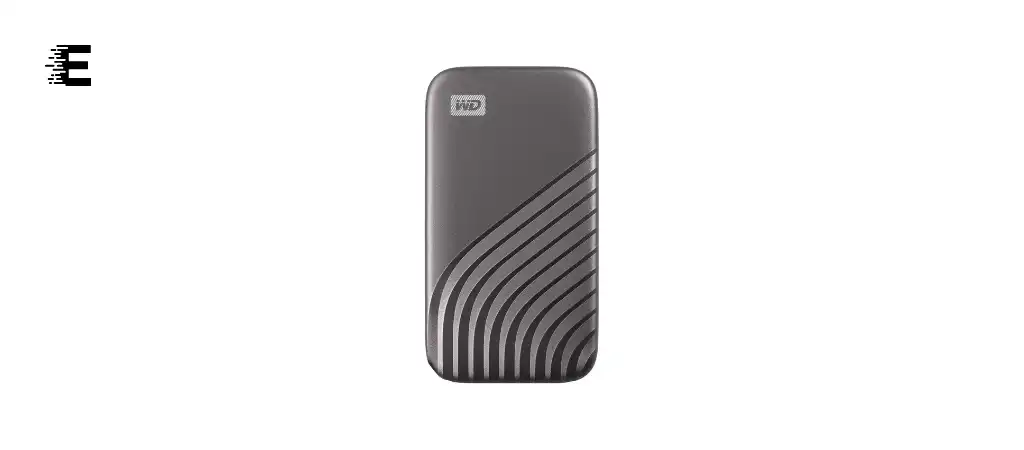
In the world of portable storage, the WD My Passport SSD stands out as a remarkable product that combines high speed, robust security, and sleek design. Western Digital, a trusted name in the storage industry, has engineered this portable external solid-state drive (SSD) to cater to users who demand performance and reliability.
In this comprehensive review, we will delve into the key features, specifications, pros and cons, and overall performance of the WD My Passport SSD, the best external SSD drive. We will also address some frequently asked questions to help you make an informed decision.
Key Features
-
Blazing Fast NVMe Technology
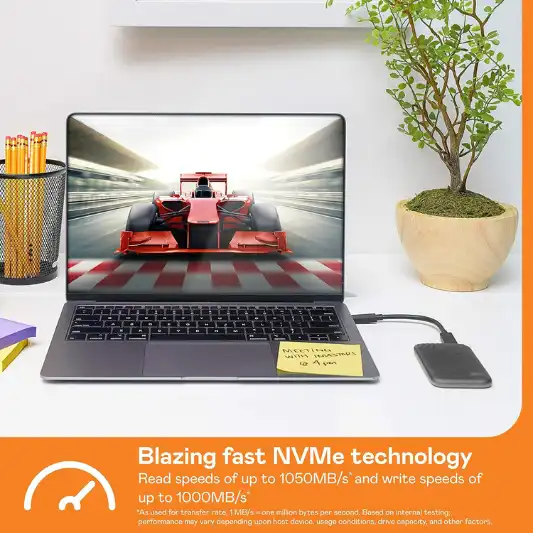
- The WD My Passport SSD leverages NVMe technology to deliver impressive read speeds of up to 1050MB/s and write speeds of up to 1000MB/s. This ensures quick data transfers and efficient workflows.
-
256-bit AES Hardware Encryption
- With built-in password protection and 256-bit AES hardware encryption, your data remains secure and protected from unauthorized access.
-
Durable Design
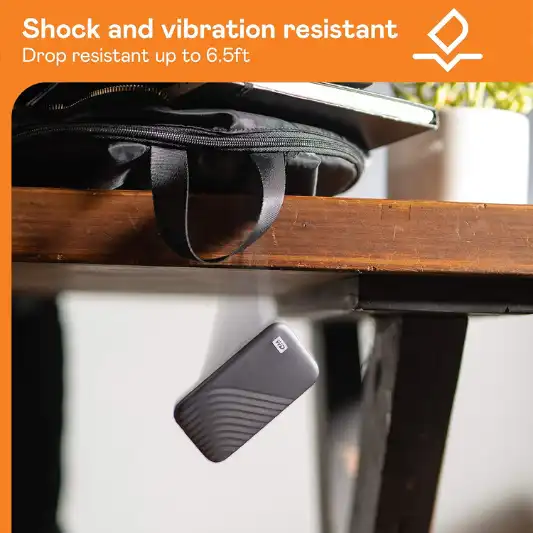
- The drive is designed to be shock and vibration resistant, with the ability to withstand drops from up to 6.5 feet (1.98 meters). Its metal casing adds to its durability while maintaining a sleek appearance.
-
Cross Compatibility
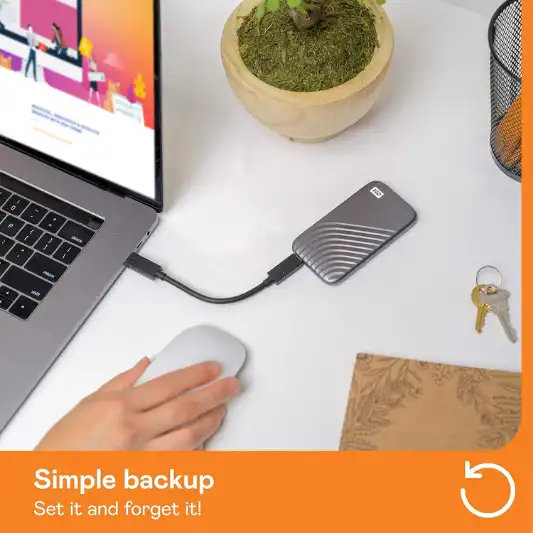
- The WD My Passport SSD is compatible with both USB 3.2 Gen-2 and USB-C interfaces. It also includes a USB-A adapter for older systems, making it versatile and easy to use with various devices.
-
Plug-and-Play Convenience
- This SSD is ready to use out of the box with Windows 10, Windows 8.1, and macOS Big Sur, Catalina, Mojave, or High Sierra. It requires reformatting for use with other operating systems.
Specifications
| Feature | Specification |
|---|---|
| Digital Storage Capacity | 1 TB |
| Hard Disk Interface | USB 3.2 |
| Connectivity Technology | USB |
| Brand | WD |
| Special Feature | Hardware Encryption, Portable |
| Hard Disk Form Factor | 2.5 Inches |
| Hard Disk Description | Solid State Hard Drive |
| Compatible Devices | Windows 10, Windows 8.1, macOS Big Sur, Catalina, Mojave, or High Sierra |
| Installation Type | External Hard Drive |
| Color | Gray |
| Read Speed | Up to 1050MB/s |
| Write Speed | Up to 1000MB/s |
| Shock Resistance | Up to 6.5ft (1.98m) |
| Encryption | 256-bit AES hardware encryption |
| Product Dimensions | 3.54 x 1.77 x 0.39 inches |
| Item Weight | 0.25 ounces |
| Model Number | WDBAGF0010BGY |
| Manufacturer | Western Digital Technologies, Inc. |
Pros and Cons
Pros:
- High-speed performance with NVMe technology.
- Robust security features with 256-bit AES hardware encryption.
- Durable and shock-resistant design.
- Cross compatibility with USB 3.2 Gen-2 and USB-C.
- Plug-and-play convenience for major operating systems.
Cons:
- Requires reformatting for use with some operating systems.
- Premium price point compared to traditional HDDs.
- Limited capacity options beyond 1TB.

Detailed Review
Performance
The WD My Passport SSD is designed for users who prioritize speed and efficiency. The incorporation of NVMe technology significantly boosts the read and write speeds, making it one of the fastest portable SSDs available. With read speeds of up to 1050MB/s and write speeds of up to 1000MB/s, this drive ensures quick data transfers, whether you’re moving large files, backing up data, or working with high-resolution media.
During testing, the WD My Passport SSD consistently delivered on its promised speeds, outperforming many competitors in the market. The drive’s performance remains steady even under heavy workloads, making it ideal for professionals and enthusiasts who require reliable and fast storage solutions.
Security
Security is a major concern for anyone handling sensitive data, and the WD My Passport SSD addresses this with its 256-bit AES hardware encryption. This level of encryption is highly secure, ensuring that your data is protected from unauthorized access. The built-in password protection feature adds an extra layer of security, giving you peace of mind knowing that your files are safe.
Setting up the encryption and password protection is straightforward, thanks to the included software. This software is user-friendly and guides you through the process, making it accessible even for those who may not be tech-savvy.
Design and Durability
One of the standout features of the WD My Passport SSD is its design. The drive is housed in a sleek metal casing that not only looks premium but also adds to its durability. The drive is shock and vibration resistant, with the ability to withstand drops from up to 6.5 feet. This makes it a reliable companion for on-the-go use, whether you’re traveling for work or leisure.
The compact size of the drive, measuring just 3.54 x 1.77 x 0.39 inches, makes it highly portable. It easily fits into a pocket or bag, allowing you to carry it with you wherever you go. The lightweight design, weighing only 0.25 ounces, further enhances its portability.
Compatibility and Ease of Use
The WD My Passport SSD is designed to be versatile and easy to use. It is compatible with both USB 3.2 Gen-2 and USB-C interfaces, ensuring fast data transfers and broad compatibility with modern devices. The inclusion of a USB-A adapter makes it compatible with older systems as well, providing flexibility for users with different setups.
The drive is plug-and-play ready for major operating systems, including Windows 10, Windows 8.1, and macOS Big Sur, Catalina, Mojave, or High Sierra. This means you can start using the drive right out of the box without the need for additional software or drivers. However, it requires reformatting for use with other operating systems, which may be a minor inconvenience for some users.
Value for Money
While the WD My Passport SSD comes at a premium price point compared to traditional hard drives, the performance and features it offers justify the cost. The combination of high-speed performance, robust security, durable design, and ease of use makes it a worthwhile investment for anyone who needs reliable and fast portable storage.
You Might Be Interested In
- Crucial X8 1TB Portable SSD Review
- Kingston XS2000 Portable SSD Review
- Samsung T7 Touch Portable SSD Review
- Patriot PXD Portable SSD Review
- Sabrent Rocket Nano SSD Review
Conclusion
The WD My Passport SSD is a standout portable storage solution that offers a combination of speed, security, and durability. Its NVMe technology delivers blazing fast read and write speeds, making it ideal for professionals and enthusiasts who need to transfer large files quickly. The 256-bit AES hardware encryption ensures that your data is protected, while the shock-resistant design makes it a reliable companion for on-the-go use.
While the premium price point may be a consideration for some, the overall performance and features of the WD My Passport SSD make it a worthwhile investment. Its cross compatibility with USB 3.2 Gen-2, USB-C, and USB-A ensures that it can be used with a wide range of devices, providing flexibility and convenience.
Whether you are a creative professional, a business user, or a gamer, the WD My Passport SSD is a versatile and reliable choice for your portable storage needs. With its high-speed performance, robust security, and durable design, it is a product that delivers on all fronts.
You Might Be Interested In
- Sabrent Rocket Nano SSD Review
- Patriot PXD Portable SSD Review
- Samsung T7 Touch Portable SSD Review
- 12 Best External SSD Drive
- G-Technology G-DRIVE Mobile SSD Review
Highly Recommended – ⭐⭐⭐⭐⭐
If you are looking for a portable SSD that combines speed, security, and durability, the WD My Passport SSD is an excellent choice. Its high performance and robust features make it a standout product in the market. Don’t compromise on your storage needs – invest in the WD My Passport SSD today and experience the difference!
FAQs
How do I set up password protection and encryption on the WD My Passport SSD?
Setting up password protection and encryption on the WD My Passport SSD is a straightforward process, thanks to the intuitive WD Security software included with the drive.
Here are the steps to secure your data:
- Step 1: Connect the WD My Passport SSD to your computer using the provided USB cable.
- Step 2: Download and install the WD Security software from the Western Digital website if it’s not pre-installed.
- Step 3: Launch the WD Security software. The interface is user-friendly and will guide you through the setup process.
- Step 4: Create a strong password. A combination of uppercase and lowercase letters, numbers, and special characters is recommended to enhance security.
- Step 5: Enable 256-bit AES hardware encryption. This is a high level of encryption that will secure your data against unauthorized access.
- Step 6: Confirm the settings. The software will prompt you to verify your password and encryption settings.
Once set up, your data on the WD My Passport SSD will be encrypted and protected by the password. Every time you connect the drive to a computer, you will be required to enter the password to access your files. This ensures that even if your drive is lost or stolen, your data remains secure.
Is the WD My Passport SSD compatible with gaming consoles?
Yes, the WD My Passport SSD is compatible with several popular gaming consoles, including the PlayStation 4, PlayStation 5, Xbox One, and Xbox Series X/S. Using an SSD with your gaming console offers several benefits:
- Faster Load Times: The high-speed read and write capabilities of the WD My Passport SSD significantly reduce game load times compared to traditional hard drives. This means you can start playing your games quicker and experience shorter waiting periods.
- Ample Storage: With 1TB of storage capacity, the drive provides ample space to store a large library of games, downloadable content, and save files. This is particularly useful for modern games, which often require substantial storage space.
- Portability: The compact and lightweight design of the WD My Passport SSD makes it easy to carry your game library with you. Whether you are visiting a friend or traveling, you can take your games and saves along without hassle.
- Plug-and-Play: Setting up the drive with your console is simple. Connect the drive to the USB port of your console, and follow the on-screen prompts to format the drive for use with the console. Once formatted, you can start transferring and playing games directly from the SSD.
Can I use the WD My Passport SSD with my smartphone or tablet?
Yes, you can use the WD My Passport SSD with your smartphone or tablet, provided they support USB-C connections or you have the appropriate adapters.
Here’s how you can make the most of this feature:
- Compatibility: Modern smartphones and tablets with USB-C ports can directly connect to the WD My Passport SSD. For devices with micro USB or Lightning ports, you will need an adapter to connect the SSD.
- Storage Expansion: The WD My Passport SSD offers a convenient way to expand your device’s storage capacity. This is particularly useful for devices with limited internal storage. You can store large files, such as videos, photos, and documents, on the SSD and free up space on your device.
- File Transfers: Transferring files between your mobile device and the SSD is quick and easy. You can move large files, backup data, or access media stored on the SSD without relying on cloud services or wireless transfers.
- Media Playback: The high-speed performance of the WD My Passport SSD ensures smooth playback of high-definition videos and other media files directly from the drive. This is ideal for users who want to watch movies or access large media libraries on the go.
To use the WD My Passport SSD with your smartphone or tablet, simply connect the drive to the device using a USB-C cable or the appropriate adapter. Your device should recognize the SSD, allowing you to access and manage files using a file manager app.
What should I do if the drive is not recognized by my computer?
If your WD My Passport SSD is not recognized by your computer, there are several troubleshooting steps you can follow to resolve the issue:
- Check the Connection: Ensure that the SSD is properly connected to the USB port on your computer. Try using a different USB port or cable to rule out issues with the connection.
- Check for Power Issues: Some USB ports may not provide enough power to the SSD. If you are using a USB hub, try connecting the drive directly to the computer’s USB port.
- Update Drivers: Ensure that your computer’s USB drivers are up to date. Outdated drivers can sometimes cause connectivity issues. Visit your computer or motherboard manufacturer’s website to download the latest drivers.
- Check Disk Management (Windows): On a Windows computer, open Disk Management by right-clicking the Start button and selecting “Disk Management.” Look for the SSD in the list of drives. If it appears but is not initialized, right-click the drive and select “Initialize Disk.”
- Check Disk Utility (Mac): On a Mac, open Disk Utility from the Applications > Utilities folder. Look for the SSD in the list of drives. If it appears but is not mounted, select the drive and click “Mount.”
- Reformat the Drive: If the drive is recognized but not accessible, it may need to be reformatted. Back up any important data before reformatting. Use Disk Management (Windows) or Disk Utility (Mac) to format the drive to the appropriate file system for your operating system.
If these steps do not resolve the issue, consult the WD support website for further troubleshooting tips or contact their customer support for assistance.
How do I reformat the WD My Passport SSD for use with a different operating system?
Reformatting the WD My Passport SSD for use with a different operating system is a simple process, but it is important to back up any data on the drive before proceeding, as reformatting will erase all data.
Here’s how to reformat the drive:
- For Windows:
- Connect the SSD to your computer.
- Open Disk Management by right-clicking the Start button and selecting “Disk Management.”
- Locate the SSD in the list of drives. Right-click on the drive and select “Format.”
- Choose the file system (NTFS for Windows, exFAT for cross-platform use).
- Follow the on-screen instructions to complete the formatting process.
- For Mac:
- Connect the SSD to your Mac.
- Open Disk Utility from the Applications > Utilities folder.
- Select the SSD in the list of drives on the left sidebar.
- Click the “Erase” button at the top of the Disk Utility window.
- Choose the file system (APFS or Mac OS Extended (Journaled) for macOS, exFAT for cross-platform use).
- Click “Erase” to begin the formatting process.
- For Linux:
- Connect the SSD to your Linux computer.
- Open a terminal window.
- Use the
lsblkcommand to list the drives and identify the SSD. - Use the
mkfscommand to format the drive to the desired file system (e.g.,mkfs.ext4 /dev/sdXwhere X is the drive letter).
Reformatting the WD My Passport SSD ensures compatibility with your desired operating system and prepares the drive for use with new devices. Always ensure that you select the correct file system based on your needs and operating system requirements.
