


You’re attending a crucial online lecture, an important Zoom meeting, or a brainstorming session with your team. Brilliant ideas are being thrown around, and you’re desperately trying to jot down every single point. But let’s be honest—keeping up is nearly impossible. Does Otter AI record Output Audio?
That’s where transcription tools like Otter.ai step in, turning spoken words into accurate, shareable text in real-time. Yet, one question keeps popping up among students, professionals, and content creators alike: Does Otter.ai record output audio? This query sparks confusion because while Otter is known for transcribing spoken content, many wonder whether it can capture the system audio—the voices and sounds coming directly from your computer rather than just what your microphone picks up.
Understanding this functionality matters more than you might think. If Otter.ai records output audio, it could revolutionize how you capture podcasts, webinars, or interviews. No more juggling multiple tools. No more risking missing valuable insights. Just seamless, automated transcription at your fingertips.
In this comprehensive guide, we’ll dive deep into how Otter works, what it can (and can’t) do with system audio, and alternative solutions if you need more. By the end, you’ll have crystal-clear answers to whether Otter.ai records output audio, how to use it effectively, and which methods professionals are relying on today.
What is Otter.ai?
Before we tackle the main question—does Otter.ai record output audio—let’s clarify what this tool actually is.
Otter.ai is an AI-powered transcription service designed to capture spoken content in real time and convert it into text. Students use it for lecture notes. Professionals rely on it for meeting minutes. Podcasters and journalists use it to streamline content production.
Some standout features include:
-
Real-time transcription during calls or face-to-face conversations.
-
Speaker identification that recognizes and labels who’s talking.
-
Searchable notes with keywords and summaries.
-
Collaboration tools for sharing and editing transcripts in teams.
At its core, Otter is not a “record-everything” tool—it’s designed to capture voices. This distinction is crucial when answering whether Otter.ai records output audio.
Does Otter.ai Record Output Audio?
The short answer: No, Otter.ai does not directly record output audio.
Here’s why: Otter is built primarily to capture microphone input, meaning it records what you or participants in a meeting say into their mics. When people ask if Otter.ai records output audio, they’re usually wondering whether it can capture the sounds coming from the computer itself—such as music playing in the background, a YouTube video, or voices on a Zoom call without using the microphone.
By default, Otter does not directly record system audio. Instead, it relies on:
-
Live microphone input (your voice and any sound captured by your mic).
-
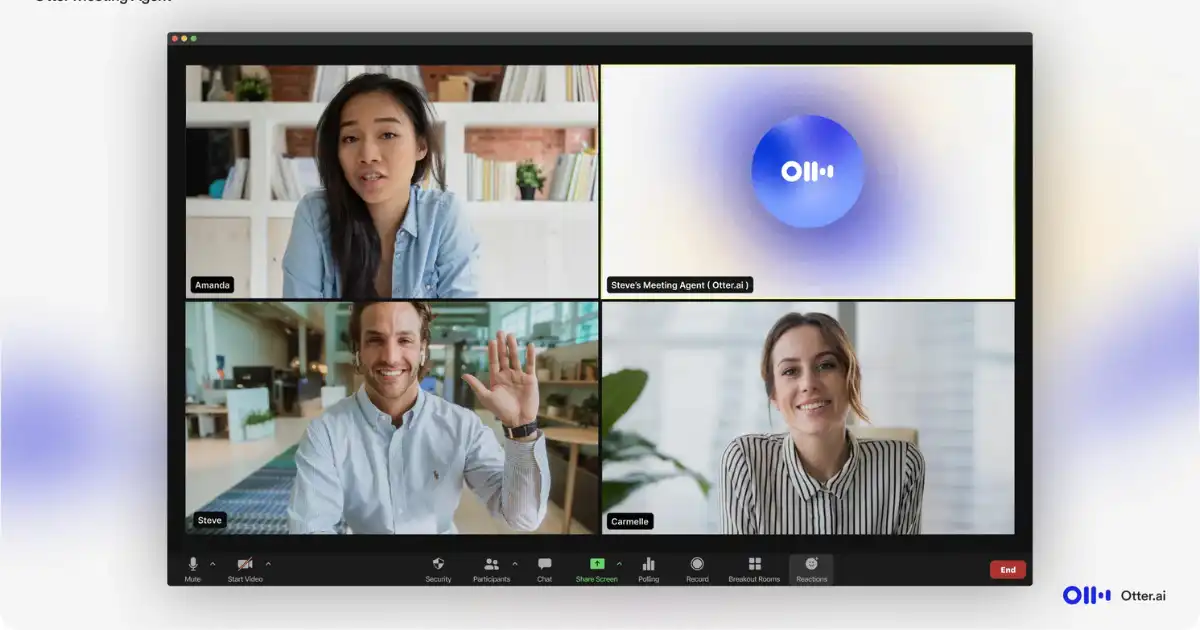
Integrated meeting tools like Zoom, Microsoft Teams, or Google Meet, where Otter connects as a participant and transcribes what’s being spoken in the meeting environment.
This limitation is intentional. Otter is not meant to be a universal sound recorder—it’s a transcription platform optimized for human speech.
Why Doesn’t Otter Record Output Audio Directly?
Understanding why Otter.ai doesn’t record output audio helps set realistic expectations. Here are the main reasons:
1. Privacy Concerns
Recording system audio could mean capturing confidential information, copyrighted material, or private conversations without consent. Otter avoids this gray area by focusing solely on meetings, lectures, and conversations where consent is assumed.
2. Technical Optimization
Otter’s AI models are trained to identify speech patterns, not random background audio. By limiting input sources, it ensures accuracy and speed.
3. Legal Compliance
Recording system audio could run afoul of state and federal wiretapping or recording laws. By sticking to microphone input and integrated platforms, Otter stays compliant with regulations.
Workarounds: How to Get Otter to Capture Output Audio
Even though Otter doesn’t natively capture system sound, there are clever ways to work around this. If you really want Otter.ai to record output audio, here’s how:
1. Use Virtual Audio Cables
Software like VB-Audio Cable or Loopback can reroute your system’s sound into your microphone input. Otter then thinks it’s hearing “mic input” when it’s actually your computer’s output.
2. Dual-Device Method
Play the audio on one device (like your laptop) and run Otter on another (like your phone). Place the phone near the speaker, and Otter will transcribe what it hears.
3. Zoom/Google Meet Integration
If the audio you want to capture is from a meeting, simply invite Otter as a participant. This way, Otter transcribes directly from the call without needing system audio access.
4. Screen Recording + Import
You can record the system audio using another app (like OBS Studio, QuickTime, or Audacity), then upload the recording to Otter for transcription.
While these aren’t perfect solutions, they’re practical for anyone who needs Otter to handle output audio indirectly.
Pros and Cons of Using Otter for Audio Recording
Advantages
-
Accurate speech recognition for meetings and conversations.
-
Convenient integrations with Zoom, Google Meet, and Teams.
-
Real-time transcription that saves time.
-
Searchable transcripts for better knowledge management.
Disadvantages
-
No native output audio recording (workarounds required).
-
Best for voices only—not suitable for music or sound effects.
-
Dependent on internet connection for real-time accuracy.
Comparing Otter to Alternatives
When evaluating whether Otter.ai records output audio, it helps to compare it with other tools:
-
Rev
Offers transcription but requires file uploads.
-
Sonix
Good for batch transcriptions but lacks real-time integration.
-
Descript
Can record both input and system audio, making it versatile for podcasters.
-
Notta
Similar to Otter but with system audio support in some setups.
If recording output audio is non-negotiable, Otter may not be your best standalone option. However, for speech-focused transcription, it’s unmatched.
Practical Scenarios: When You Might Need Output Audio
-
Podcasters capturing guest interviews.
-
Students recording online lectures.
-
Journalists documenting webinars.
-
Content creators transcribing YouTube videos.
In each case, the inability of Otter.ai to record output audio directly can be frustrating, but with workarounds, it’s still usable.
Step-by-Step: Using Otter Effectively Without Output Audio
-
Set up your account (Free or Pro plan).
-
Connect to Zoom or Meet if attending online events.
-
Position your microphone for in-person conversations.
-
Use workarounds if capturing system audio is essential.
-
Edit and share transcripts within Otter’s dashboard.
Best Practices for High-Quality Transcriptions
-
Speak clearly and reduce background noise.
-
Use headphones during meetings to avoid echo.
-
Test integrations before important calls.
-
Label speakers for accurate identification.
-
Review transcripts—AI isn’t flawless.
You Might Be Interested In
- How To Write T&CS With Ai Safely?
- How To Write Mom With Ai In Minutes?
- Best 5 Strategies For Surviving The Ai Chip Shortage
- Ai Note-taking Apps Compared: Notion Ai Vs Otter Vs Others
- What Is Ai Hardware Learning?
- How to convert voice to text with AI?
- What Is Cloud Disaster Recovery And Why Is It Important?
- Who Made Sophia Robot?
- What is CNN in Machine Learning?
- Best 5 Chinese Ai Startups Challenging Silicon Valley
Conclusion
So, does Otter.ai record output audio? The straightforward answer is no. Otter is designed to capture microphone input and integrate directly with communication tools like Zoom and Google Meet. This makes it a powerhouse for transcribing conversations, meetings, and lectures—but not for recording everything your computer plays.
That said, creative users have found ways around this limitation through virtual audio routing, dual devices, or external recording tools. If your goal is to capture system audio seamlessly, you may need to pair Otter with additional software.
In essence, Otter excels where it’s meant to: turning voices into text with speed and accuracy. For professionals, students, and content creators, that’s often all you really need. But if your workflow demands full output audio recording, consider combining Otter with other tools—or choosing an alternative solution altogether.
By understanding these strengths and limits, you can make the most out of Otter and avoid disappointment. Ultimately, it’s not about whether Otter.ai records output audio, but how you leverage the platform’s strengths to simplify your digital life.
FAQs about Ai Record
Does Otter record audio?
Yes, Otter does record audio. When you use Otter.ai, it captures spoken words through your device’s microphone and turns them into both an audio file and a written transcript. This makes it very useful for people who want to review conversations, meetings, or lectures later on. Instead of just taking notes by hand, you can let Otter record the entire discussion while it automatically creates a text version. Having both the audio and transcript makes it easier to search, highlight important parts, and share information with others.
Otter’s recording ability is especially helpful for students, professionals, and teams who need to stay focused during conversations without worrying about missing details. You can play back the audio whenever you need and compare it with the transcript to check for accuracy. This dual recording and transcription feature is one of the main reasons why many people prefer Otter over traditional note-taking methods.
How long can Otter.ai record audio?
Otter.ai allows users to record for extended periods, but the exact length depends on your plan. Free users can typically record up to a certain number of minutes each month, while paid plans offer many more hours. In one sitting, recordings can last for hours without interruption, making it possible to capture long lectures, full meetings, or lengthy interviews. This makes it much more reliable than apps with short time limits.
Because Otter is cloud-based, the recordings are stored online, so you don’t have to worry about running out of space on your device. The audio and transcript are saved securely and can be accessed anytime. This flexibility is especially useful for professionals and students who often attend events that last several hours and want everything captured without breaks.
Can Otter.ai record an in-person meeting?
Yes, Otter.ai can record an in-person meeting. All you need to do is open the app on your phone, tablet, or laptop and start recording. The microphone on your device will pick up the voices of everyone in the room. Otter will then generate both the audio file and the real-time transcript, which you can save and share with your colleagues afterward. This makes it an excellent tool for team discussions, brainstorming sessions, and even interviews.
The advantage of using Otter in person is that it doesn’t just capture what is said—it organizes it. You can tag speakers, highlight key points, and even search for specific phrases later. Instead of writing hurried notes during a meeting, you can stay engaged in the discussion and let Otter handle the recording and transcription for you.
Can Otter.ai record lectures?
Yes, Otter.ai is widely used by students to record lectures. By placing your phone or laptop where the lecturer can be clearly heard, Otter will capture the lecture in real time and create a transcript alongside the audio. This is especially helpful for subjects with lots of details, complex terms, or fast-paced discussions, where taking notes manually might cause you to miss important points.
After the lecture, you can review the transcript, highlight important sections, and even share the notes with classmates. Since the transcript is searchable, you can easily jump back to specific topics without listening to the entire lecture again. For students, this saves time and improves learning since you can focus during class without worrying about writing everything down.
Which is the best AI to record lectures?
Otter.ai is often considered one of the best AI tools to record lectures because it offers both accurate audio recording and automatic transcription. Its real-time note-taking ability helps students and professionals quickly capture information without missing details. However, other AI tools like Rev, Sonix, or Microsoft Teams’ transcription feature are also popular, depending on what features you need. Some focus on higher accuracy, while others provide strong integration with learning or work platforms.
When it comes to lectures, Otter is especially valuable because it allows you to listen, read, and search through your notes afterward. This makes studying much more efficient. The “best” option often depends on personal preference and budget, but Otter is widely recognized as a reliable and user-friendly choice for both students and educators.
